How to Extrude in Blender: A Step - by - Step Guide
Author: SZTC
2025-03-24
Introduction
In 3D modeling, extrusion is a fundamental operation that allows you to create new geometry from existing shapes. In Blender, a popular open - source 3D creation suite, the extrusion tool is extremely versatile and can be used in various aspects of the modeling process, whether you're creating hard - surface models like buildings or organic models such as characters. In this blog p
ost we'll explore how to extrude in Blender, step by step.

Prerequisites
Before we start, make sure you have Blender installed on your computer. If you're new to Blender, it's a good idea to familiarize yourself with the basic user interface, including the 3D viewport, toolbar, and properties panel.
Selecting the Object
- Open Blender and create a new project. By default, Blender starts with a cube in the 3D viewport.,To extrude, you first need to select the object or the part of the object you want to extrude. In Object Mode (press Tab to switch between Object and Edit Modes), click on the cube to select it. Then, enter Edit Mode by pressing Tab again. In Edit Mode, you can select individual elements such as vertices, edges, or faces.
2.There are different selection methods. You can use the left - click to select a single element. To select multiple elements, hold down the Ctrl key while clicking. You can also use the box selection tool. Press B and drag the mouse to create a box. All elements within the box will be selected.
Extruding Faces
- Once you're in Edit Mode and have selected the face or faces you want to extrude, there are several ways to access the extrusion tool. One common way is to use the hotkey E. Press E, and you'll notice that the selected face(s) start to move as you move the mouse. This is the extrusion preview.
- After pressing E, you can immediately start moving the mouse to extrude the face in the direction you want. If you want to extrude along a specific axis (such as the X, Y, or Z - axis), you can press the corresponding axis key (X, Y, or Z) after pressing E. For example, if you press E and then Z, the extrusion will be constrained to the Z - axis.
- You can also enter a specific value for the extrusion distance. After pressing E, type in the desired distance value in the numeric input field that appears at the bottom of the 3D viewport and press Enter.
Extruding Edges
- Select the edges you want to extrude in Edit Mode. You can use the edge selection mode, which you can switch to by pressing Ctrl + Tab and selecting "Edge" from the menu.
- Press E to extrude the selected edges. Similar to face extrusion, you can move the mouse to preview the extrusion. If you want to extrude the edges perpendicular to their original direction, you can use the Alt + E combination. This will give you different extrusion options, such as "Extrude Individual", which extrudes each selected edge separately.
- When extruding edges, you might also want to control the extrusion in terms of the number of segments. After extruding, you can use the F6 key to bring up the extrusion options panel, where you can adjust the number of segments for the extrusion.

Extruding Vertices
- Switch to vertex selection mode by pressing Ctrl + Tab and choosing "Vertex". Select the vertices you want to extrude.
- Press E to extrude the vertices. When extruding vertices, you can create new geometry that branches out from the original vertices. You can use the same axis - constraining techniques (pressing X, Y, or Z after pressing E) to control the direction of the extrusion.
Extrusion in Different Contexts
- Extrusion for Modeling Buildings: When creating buildings in Blender, extrusion is often used to create walls, floors, and other architectural elements. For example, you can start with a rectangular face representing the footprint of a wall and extrude it along the Z - axis to create the height of the wall. You can then extrude windows and doors from the wall faces.
- Extrusion for Character Modeling: In character modeling, extrusion can be used to create details such as fingers, ears, or other appendages. Starting from a base shape, you can extrude vertices or faces to gradually build up the desired shape.
Conclusion
Extrusion in Blender is a powerful tool that unlocks a wide range of creative possibilities in 3D modeling. By following the steps outlined in this blog post, you should be able to start using the extrusion tool effectively in your own Blender projects. Remember to practice different types of extrusion on various objects and elements to become more proficient in this essential 3D modeling technique.
What Are Extruders? A Comprehensive Guide
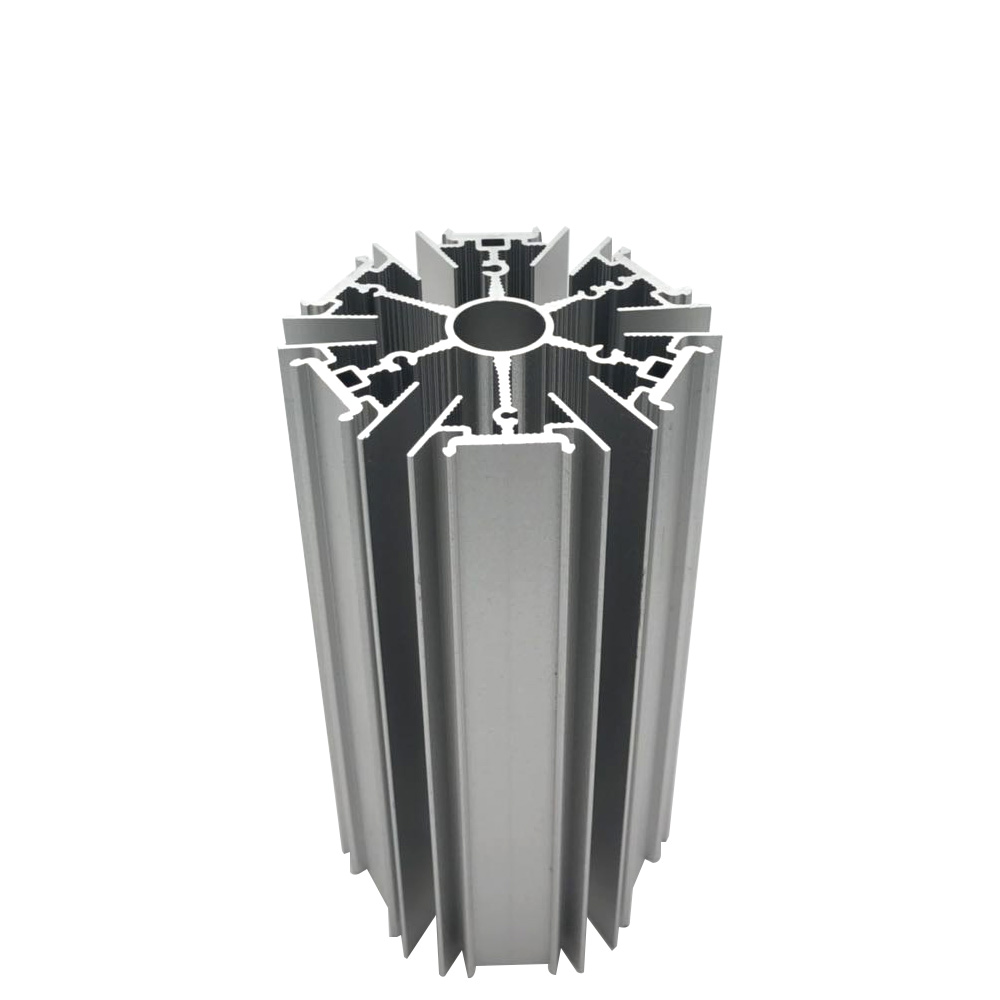
Exploring the World of Extruded Aluminum Profiles
Related Article
Fast sampling is the fastest way to win business in the hardware machining and plastic mold industries. Customers want a working sample in days, and a 3D printer delivers it, but only when you know how to print in 3d correctly.
how to print in 3d
Fast sampling is the fastest way to win business in the hardware machining and plastic mold industries. Customers often send an STL file and expect a working sample in days.
how to print an stl file