How to Print Using 3D Printer: A Practical Guide for Hardware & Plastic Mold Fast Sampling
Author: SZTC
2026-03-31


Samuel Song Your service representative
Specializing in zinc-aluminum-magnesium alloy die-casting processing, CNC milling, CNC turning, 3D printing, injection molding and sheet metal processing. Manufacturing services.
-----------------------------------------------------------------------------------------------------------------------------------------------------------------------------------------------------------------------------------------------------------------------------------------------------------------------------------------------
For manufacturers in the hardware processing and plastic mold industries, rapid prototyping is the key to accelerating product development, verifying designs, and winning client orders. 3D printing has become the go-to solution for fast, low-cost sample production—but many engineering teams still ask: how to print using 3D printer to get high-precision, industrial-grade samples that meet hardware and mold standards?
Unlike consumer-grade 3D printing, industrial printing for hardware (metal parts) and plastic molds (cavities, inserts) requires specific steps, material selection, and parameter settings to ensure speed and quality. This blog will break down how to print using 3D printer in a step-by-step, industry-tailored guide, covering preparation, operation, post-processing, and key tips to avoid common mistakes, helping you master fast sampling with 3D printing.
1. Pre-Print Preparation: Lay the Foundation for Successful 3D Printing
Before you start printing, proper preparation is critical to avoid failures and ensure your sample meets industrial requirements. This is the first and most important step in how to print using 3D printer for hardware and mold applications.
1.1 Step 1: Optimize the 3D Design File (Critical for Precision)
The 3D design file is the blueprint for your sample—poor design will lead to print failures or low-quality parts. For hardware and mold industries, follow these guidelines:
-
For Hardware Processing: Use CAD software to design metal parts (brackets, fasteners, mechanical fittings) with clear dimensional tolerances (typically ±0.02mm). Avoid overly thin walls (less than 0.8mm for metal) and sharp right angles—replace them with R0.5-1mm rounded corners to prevent stress concentration and printing cracks. Add internal (2-3mm thick) for large flat parts to enhance impact resistance.
-
For Plastic Mold Manufacturing: Design mold cavities, inserts, or trial molds with proper draft angles (1-3°) for easy part release. Optimize cooling channels and parting surfaces, and avoid closed internal cavities that cannot be printed without supports. For complex mold structures, use SLS technology-compatible designs to reduce support needs.
-
File Format & Error Checking: Save the file in universal formats (STL, STEP, IGES) for compatibility with industrial 3D printing software. Use design validation tools to check for errors (non-manifold edges, overlapping structures) that cause print failures. For metal parts, ensure the model is compatible with SLM/DMLS printing technology.
1.2 Step 2: Select the Right Industrial-Grade Material
Material selection directly determines the strength, precision, and usability of your sample—this is a key part of how to print using 3D printer for industrial use. Choose materials based on your industry and sample purpose:
-
Hardware Processing (Metal Samples): Prioritize materials that balance hardness and printability. 17-4PH stainless steel is a cost-effective choice (heat-treated hardness 40-45HRC) for mold inserts and guide pillars; H13 hot-work mold steel (heat-treated hardness 38-42HRC) is ideal for high-temperature die-casting molds; WC-Co alloy (hardness 65-70HRC) is used for high-wear cutting tools. Metal powder particle size should be 15-53μm for uniform melting.
-
Plastic Mold Manufacturing (Mold Samples): Use high-temperature resistant resins or engineering plastics that withstand injection molding heat. High-temp resins (e.g., Rigid 10K Resin) are suitable for trial molds; glass-filled nylons work for durable mold inserts. For composite mold parts, choose SLA-compatible resins for smooth surfaces needed for carbon fiber molding.
1.3 Step 3: Prepare the 3D Printer & Workspace
Industrial 3D printers require pre-operation checks to ensure stable performance:
-
Printer Calibration: Calibrate the print bed (leveling) and nozzle/laser focus to avoid uneven layers. For metal printers, check the laser power and powder bed temperature; for resin printers, verify UV light intensity and resin tank cleanliness.
-
Material Preparation: Dry metal powder (humidity <30%) to prevent pores during printing; load resin into the tank without bubbles. For H13 mold steel, ensure the print chamber has high-purity argon (oxygen content <0.01%) to avoid oxidation.
-
Workspace Setup: Maintain a clean, temperature-controlled environment (20-25℃) to prevent material degradation. For resin printing, ensure proper ventilation; for metal printing, use a fire-resistant workspace and protective equipment.

2. In-Print Operation: Step-by-Step Guide to 3D Printing
Once prepared, follow these steps to print your sample—this is the core of how to print using 3D printer for hardware and mold fast sampling. The process varies slightly by printer type, but the core steps are universal.
2.1 Step 1: Import & Slice the Design File
Use industrial 3D printing software (e.g., Raise3D专属切片软件, SLM Solutions Software) to import your design file and slice it into printable layers:
-
Slicing Parameters: Set layer thickness (0.03-0.2mm)—0.03mm is the "golden thickness" for high precision, ensuring uniform hardness distribution after heat treatment. For metal parts, use thinner layers (0.03-0.05mm); for mold parts, 0.05-0.1mm balances speed and precision.
-
Support Structure Settings: Add automatic supports for overhanging features (angle >45°). For metal parts, use the same material for supports to avoid surface scratches during removal; for resin mold parts, place supports in non-critical areas to minimize post-processing.
-
Print Speed & Power: Adjust based on material: 17-4PH stainless steel uses 280-320W laser power and 400-500mm/s scanning speed; H13 mold steel requires 350-400W power and 300-400mm/s speed to ensure full melting. For resin printing, set speed to 50-100mm/s for precision.
2.2 Step 2: Start Printing & Monitor the Process
Initiate the print and monitor it closely, especially in the first 30 minutes (critical for avoiding early failures):
-
Metal 3D Printing (SLM/DMLS): The printer automatically spreads metal powder and fuses it with a laser layer by layer. Monitor the laser focus and powder bed temperature to prevent uneven melting or pores. For large parts, use Raise3D’s Hyper FFF™ active vibration suppression technology to reduce errors.
-
Resin/Plastic 3D Printing (SLA/FDM): SLA printers cure resin with UV light; FDM printers extrude molten plastic. Check for resin leaks (SLA) or filament jams (FDM). For mold parts, use IDEX dual-nozzle systems to print multiple samples simultaneously and speed up sampling.
-
Unattended Printing: For long print jobs (4+ hours), use printers with remote monitoring. Set up alerts for failures (e.g., material runout, laser malfunction) to avoid wasting time and materials.

3. Post-Processing: Finalize the Sample for Industrial Use
3D printed samples are not "print-ready"—post-processing is essential to meet hardware and mold standards. This final step completes how to print using 3D printer for industrial sampling.
3.1 Step 1: Remove Supports & Print Bed
Carefully remove support structures using pliers, wire cutters, or chemical etching (for metal parts). For resin parts, gently peel off supports to avoid surface damage; for metal parts, use mechanical cutting and grind the contact points to smoothness. Remove the sample from the print bed using a spatula (resin) or specialized tool (metal), taking care not to deform the part.
3.2 Step 2: Surface Finishing & Material Enhancement
Optimize the sample’s surface and performance based on its use:
-
Hardware (Metal Samples): Sand the surface with fine-grit sandpaper (400-800 grit) to remove burrs. Perform heat treatment to enhance hardness: 17-4PH stainless steel uses 1040℃ solution treatment + 480℃ aging; H13 mold steel uses 860℃ quenching + 520℃ double tempering. For high-wear parts, add PVD coating to by 50%.
-
Plastic Mold Samples: Clean resin parts with isopropyl alcohol to remove uncured resin. Cure resin parts in a UV chamber for full hardness. Sand mold cavities to a smooth finish (Ra≤3.2μm) to prevent sticking during injection molding. For composite molds, use喷砂处理 (0.1mm alumina sand, 0.3MPa pressure) to enhance surface hardness.
3.3 Step 3: Quality Inspection (Critical for Industrial Use)
Inspect the sample to ensure it meets your industry’s standards—this is the final check before using or delivering the sample:
-
Precision Check: Use calipers or a coordinate measuring machine (CMM) to verify dimensional accuracy, ensuring it matches the CAD design. For mold parts, check for draft angle consistency and cavity smoothness.
-
Performance Testing: For hardware parts, test strength and hardness (e.g., 17-4PH should reach 40-45HRC after heat treatment); for mold parts, test heat resistance and durability with preliminary injection molding trials.
-
Defect Check: Look for pores, cracks, or uneven surfaces—these defects can render hardware parts unusable or mold parts ineffective. For metal parts, use a microscope to check for internal pores (porosity <0.1% is ideal).

4. Key Tips & Common Mistakes to Avoid
To master how to print using 3D printer for hardware and mold sampling, avoid these common mistakes and follow industry-proven tips:
4.1 Tips for Fast, High-Quality Sampling
-
Prioritize "design for additive manufacturing (DfAM)"—simplify non-critical features to speed up printing and reduce costs. Consult your printer manufacturer for design optimizations (e.g., Raise3D’s technical support for industrial parts).
-
For urgent samples, use printers with fast-print modes (e.g., 5-hour urgent service for small parts) and pre-prepare materials to cut down on preparation time.
-
Establish a material storage system: keep metal powder in dry boxes (dew point <-40℃) and resin in sealed containers to avoid degradation.
4.2 Common Mistakes to Avoid
-
Skipping printer calibration: Uncalibrated beds or lasers cause uneven layers and failed prints—always calibrate before starting.
-
Choosing the wrong material: Using consumer-grade materials (e.g., PLA) for industrial samples leads to low strength and poor durability. Always use mold-grade metals or high-temp resins.
-
Neglecting post-processing: Skipping heat treatment for metal parts or surface finishing for mold parts results in samples that don’t meet industrial standards.
-
Blindly pursuing high hardness: Hardness over 55HRC makes metal parts brittle—choose hardness based on use (40-45HRC for molds, 55-60HRC for cutting tools).
Final Recap: To answer how to print using 3D printer for hardware and plastic mold fast sampling, follow three core stages: pre-print preparation (optimize design, select materials, calibrate printer), in-print operation (slice, print, monitor), and post-processing (remove supports, finish, inspect). By following these steps and industry tips—including material selection, parameter setting, and heat treatment—you can consistently produce high-precision, industrial-grade samples in hours, not weeks. Mastering how to print using 3D printer is the key to streamlining your sampling process, reducing costs, and staying competitive in the hardware and mold industries.
What 3D Printing Is Used for: Fast Sampling Solutions for Hardware & Plastic Mold Industries
How 3D Printing Works: A Step-by-Step Guide for Hardware & Plastic Mold Fast Sampling
Related Article
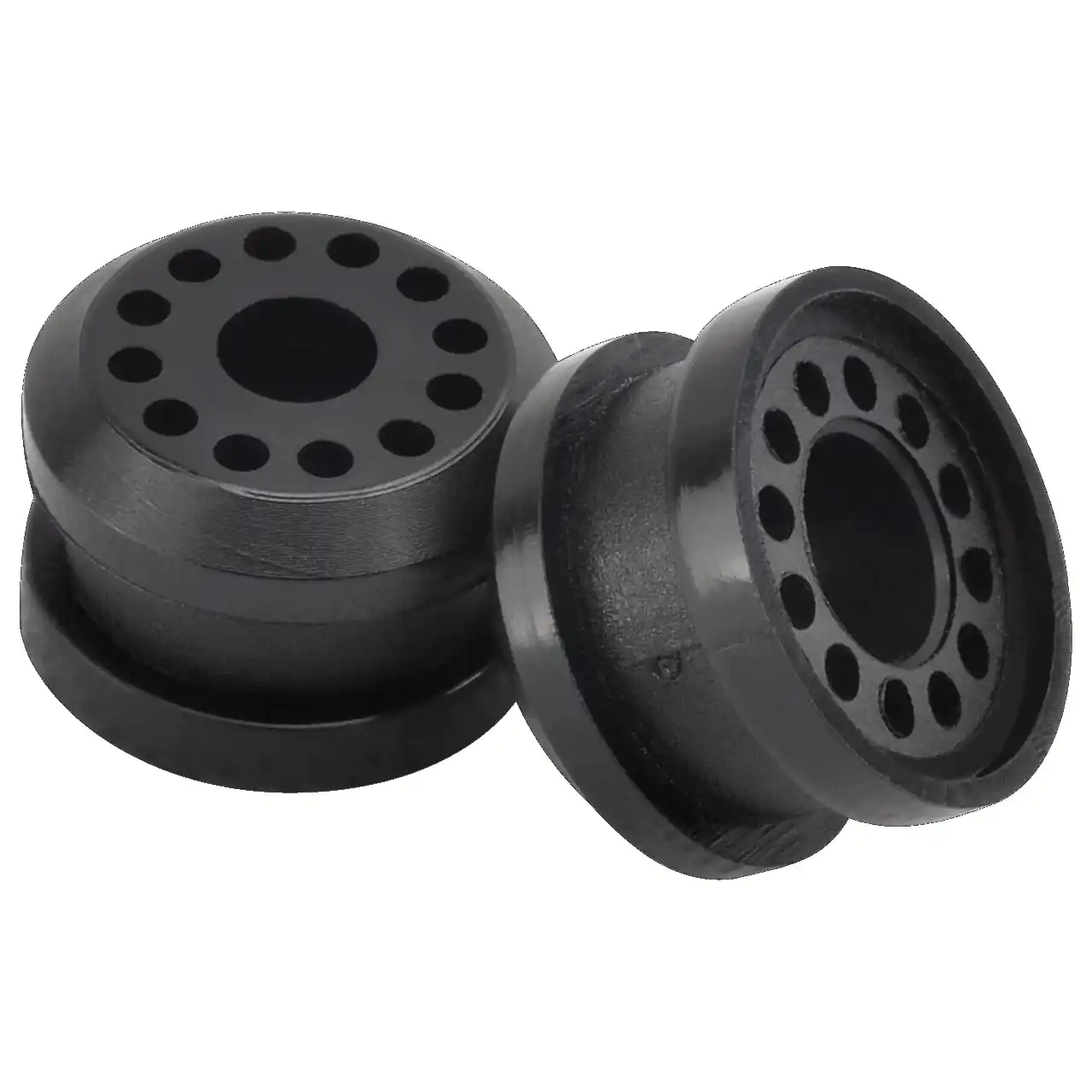
Fast sampling is the fastest way to win business in the hardware machining and plastic mold industries. Customers want a working sample in days, and a 3D printer delivers it, but only when you know how to print in 3d correctly.
how to print in 3d
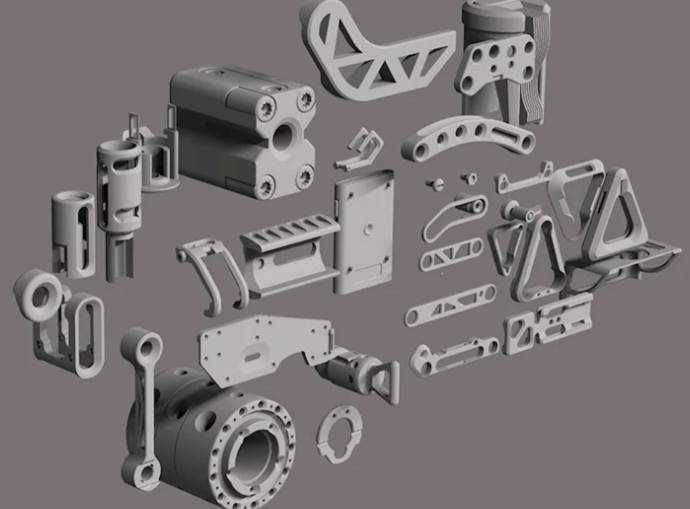
Fast sampling is the fastest way to win business in the hardware machining and plastic mold industries. Customers often send an STL file and expect a working sample in days.
how to print an stl file